
In this section
Get notified when a request arrives
Turn on desktop notifications for requests that arrive while the inspector is in a background tab, or set up a Slack, Discord, Telegram or phone alert for when it's closed.
You don't need to keep watching the inspector. It can tell you when a request lands, and an automation can tell you even when the inspector isn't open.
Desktop notifications, while the inspector is open
- Click the bell at the top right of the inspector.
- When your browser asks, allow notifications for webhook.stream.

You'll see You will be notified when a request arrives while this tab is in the background. From then on, each request that arrives while you're in another tab or app shows a notification with its method, path, sender and event. Click the bell again to turn them off.
Even with notifications off, the tab's title counts new requests, such as (3) Inspector · webhook.stream, until you come back to it.
These notifications only work while the inspector is open in a tab. Closing the tab stops them.
Email alerts, when the inspector is closed
webhook.stream can email you when your URL receives requests. Requests that arrive close together are gathered into one email, so a burst doesn't flood your inbox.
- In the inspector, click Stream, then open the Email alerts tab.
- Under Send alerts to, type your email address.
- If you want, turn on Include the start of each request body. It's off by default: bodies often hold personal data or secrets, and email is less private than the inspector.
- Click Send confirmation email.
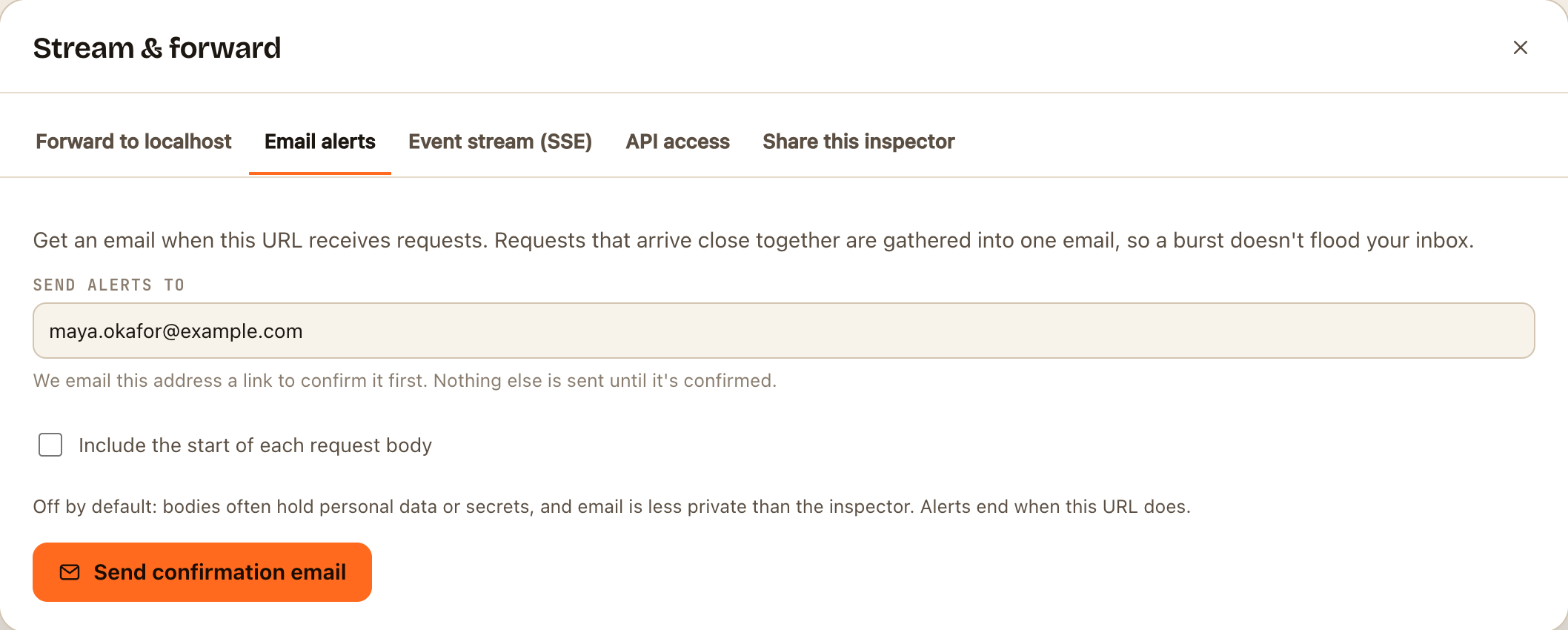
- Open the email from webhook.stream and click Confirm email alerts. Nothing is sent until you do.
The tab then shows where alerts go, a green dot appears next to Email alerts, and you'll get at most one email every 5 minutes. A free URL sends up to 20 a day, and one with a Pro pass up to 200. Each email has a link to stop them, or click Stop email alerts in the tab. Alerts end when the URL does.
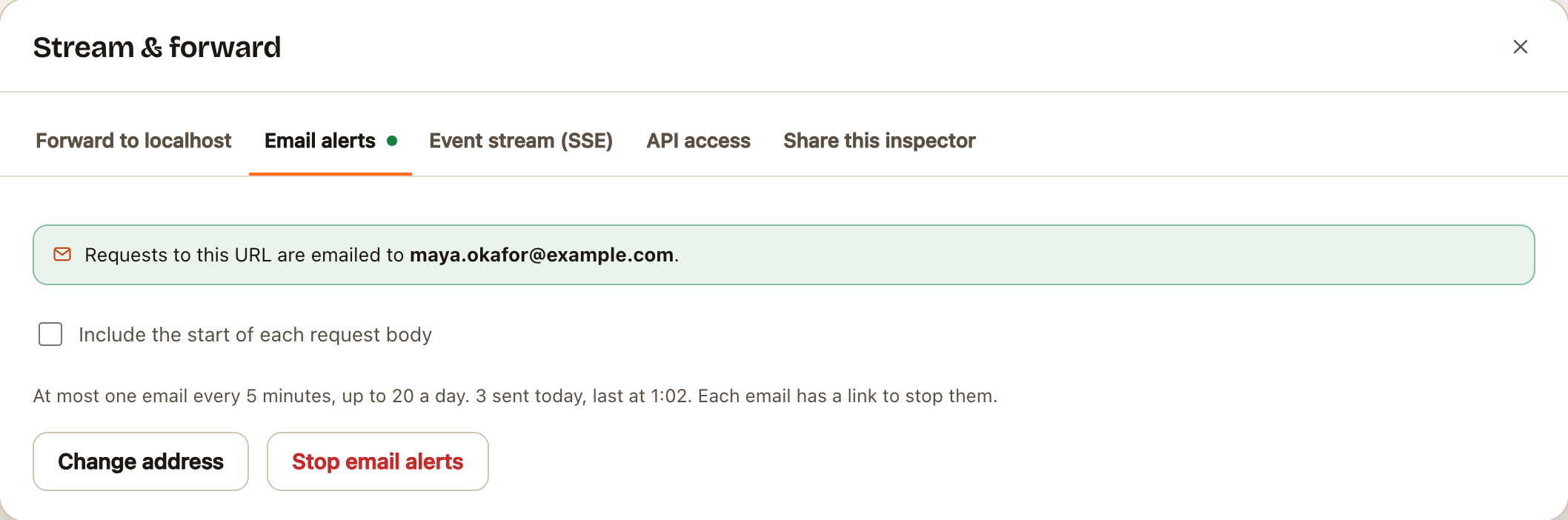
No confirmation email? Check your spam folder, or click Send it again. Each URL can send three confirmation emails a day.
Other alerts when the inspector is closed
Add an automation that sends a message somewhere you'll see it. It runs on every matching request, whether or not anyone has the inspector open.
| You want | Use |
|---|---|
| A message in a team channel | Notify Slack or Notify Discord |
| A message on your phone, through a chat app | Notify Telegram |
| A push notification on your phone | Push with ntfy |
See Send webhooks to Slack, Discord, Telegram or ntfy. Add a condition so you only hear about the requests that matter: Choose when an automation runs.
If something goes wrong
- "Notifications are blocked for this site in your browser settings". You (or your browser) said no earlier. Allow notifications for webhook.stream in your browser's site settings, then click the bell again.
- "This browser does not support notifications". Use a desktop browser, or an automation instead.
- Nothing shows while the inspector is the active tab. That's deliberate: you can already see the request arrive.
- Notifications are on but don't appear. Check your operating system's notification settings and Focus or Do Not Disturb modes.