
Check what an automation sent
Every automation delivery is logged on the request that caused it, with the status code, timing and the start of the reply. How to read the Deliveries tab, and what the counts and colours mean.
Each time an automation runs, the attempt is recorded against the request that triggered it. That's where you find out whether a message reached Slack or your API accepted a forward, and why not if it didn't.
See a request's deliveries
- Select the request in the list.
- Click the Deliveries tab. Its count shows how many deliveries the request caused, in green when they all worked and in red when any failed.
Each delivery shows:
| Part | Means |
|---|---|
| The dot | Green for delivered, red for failed |
| The name | Which automation ran |
| The number | The status code the destination answered, or — if it never answered |
| ms | How long the destination took |
| The time | When it was sent |
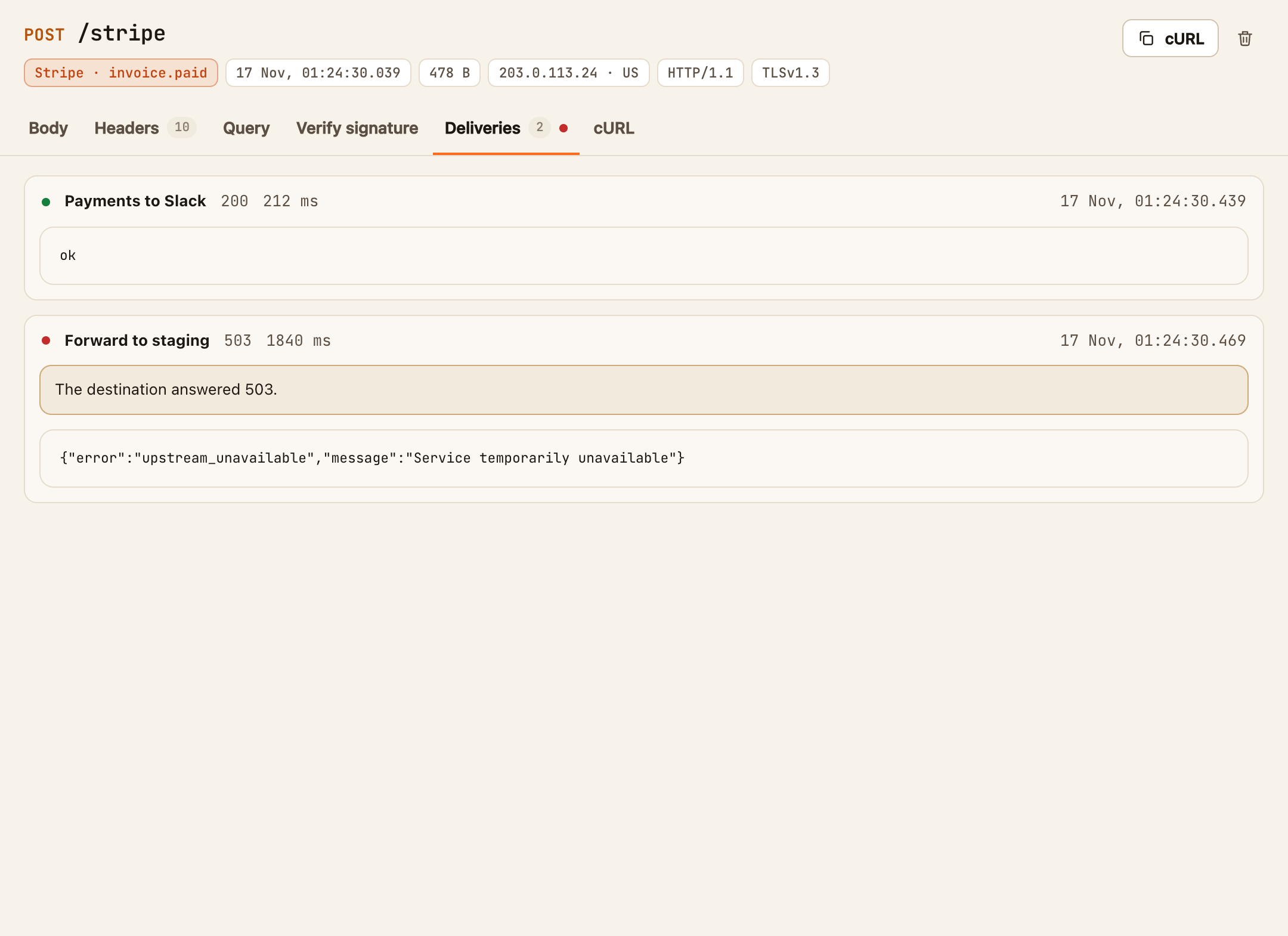
Click a delivery to open it. Failed ones open by themselves. Inside you'll find the reason it failed, if it did, and the first part of the destination's reply. Error messages from APIs are usually there.
What counts as delivered
The destination answered with a status from 200 to 299 within 8 seconds. Anything else is a failure: an error status, a redirect, no answer in time, or no connection.
Other places to look
- The Automations window. Next to each automation in the list is the number of times it has run. Its dot is green when it's on, grey when you've switched it off, and red when it has paused itself after repeated failures.
- The Automations button. The number on it turns red when any automation has paused.
- No deliveries listed? No automation ran for that request. Either none matched its conditions, or the daily allowance was used up. A delivery skipped for that reason is listed as Skipped: this endpoint's delivery budget is used up for now.
Re-send a delivery that failed
Deliveries aren't retried automatically. To send one again:
- Select the request.
- Click Automations and open the automation.
- Click Send test.
It sends that request once more, and the result is added to the request's Deliveries tab.